How to use HostLens: compare your Airbnb listing to the competition in 15 minutes
A step-by-step guide to HostLens: capture nearby Airbnb listings, mark your own, and get a plain-language report on how you stack up.
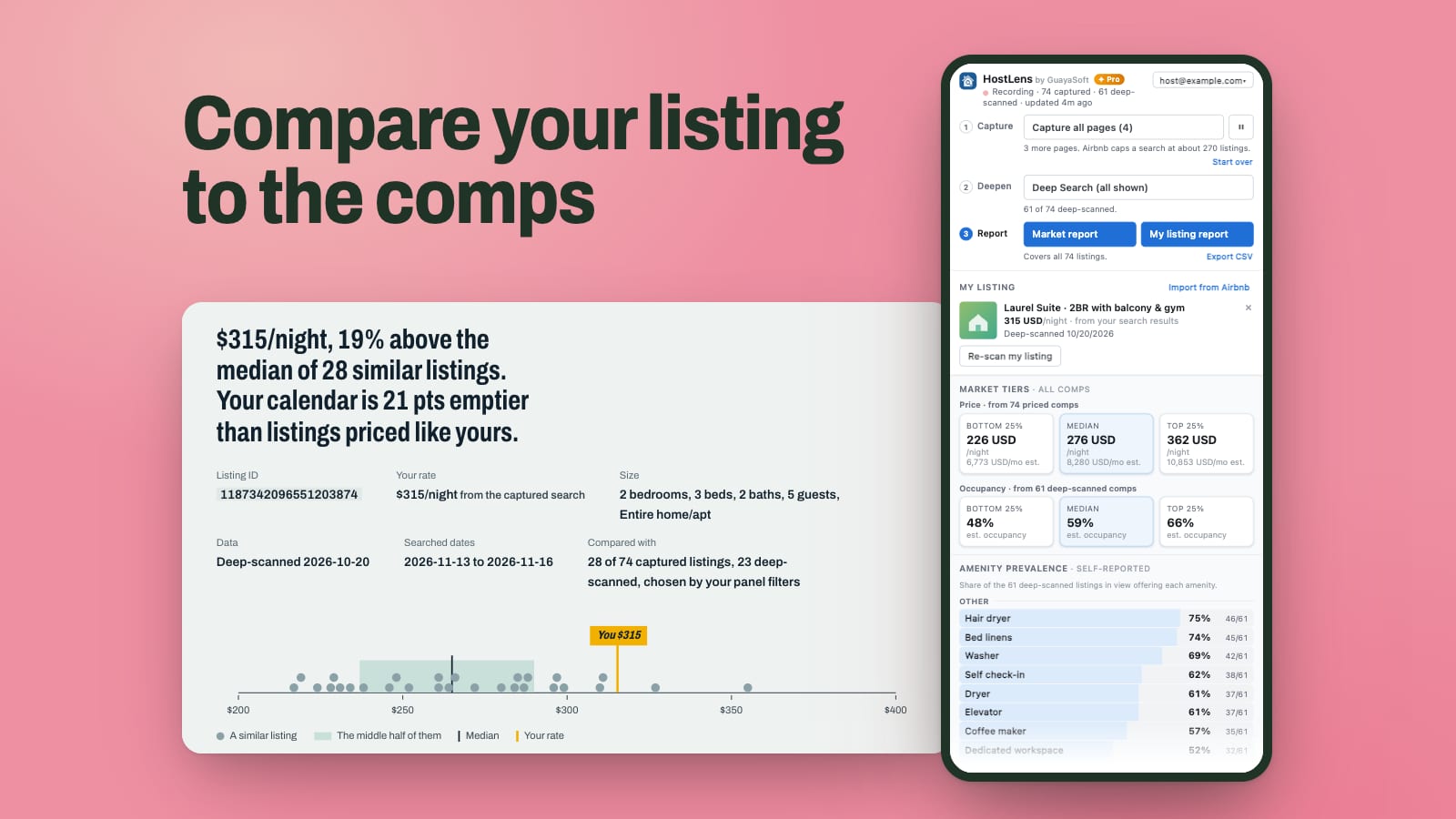
Why this matters
If you’ve ever tried to answer “Am I charging the right price?” you probably did it the hard way: open Airbnb, search your neighborhood, click through listing after listing, and jot prices into a notebook or a spreadsheet. An hour later you have twenty numbers and a headache.
HostLens does that legwork for you. It’s a free Chrome extension that sits quietly beside Airbnb while you browse. It notes the listings you scroll past, then shows you, in plain language, how your place compares: on price, reviews, amenities and, if you want to go deeper, how busy your neighbors’ calendars look. (If you’re new to the idea, why market research matters explains what you’re really measuring.)
No spreadsheets. No account needed to start. Let’s walk through it.
Step 1: Install HostLens
- Open HostLens on the Chrome Web Store and click Add to Chrome.
- Chrome will ask whether HostLens can read Airbnb pages. Click Add extension. That’s how HostLens sees the listings you browse. It only works on Airbnb’s own websites, nowhere else.
- Click the puzzle-piece icon in Chrome’s toolbar and pin HostLens so it’s always one click away.
Step 2: Open the side panel
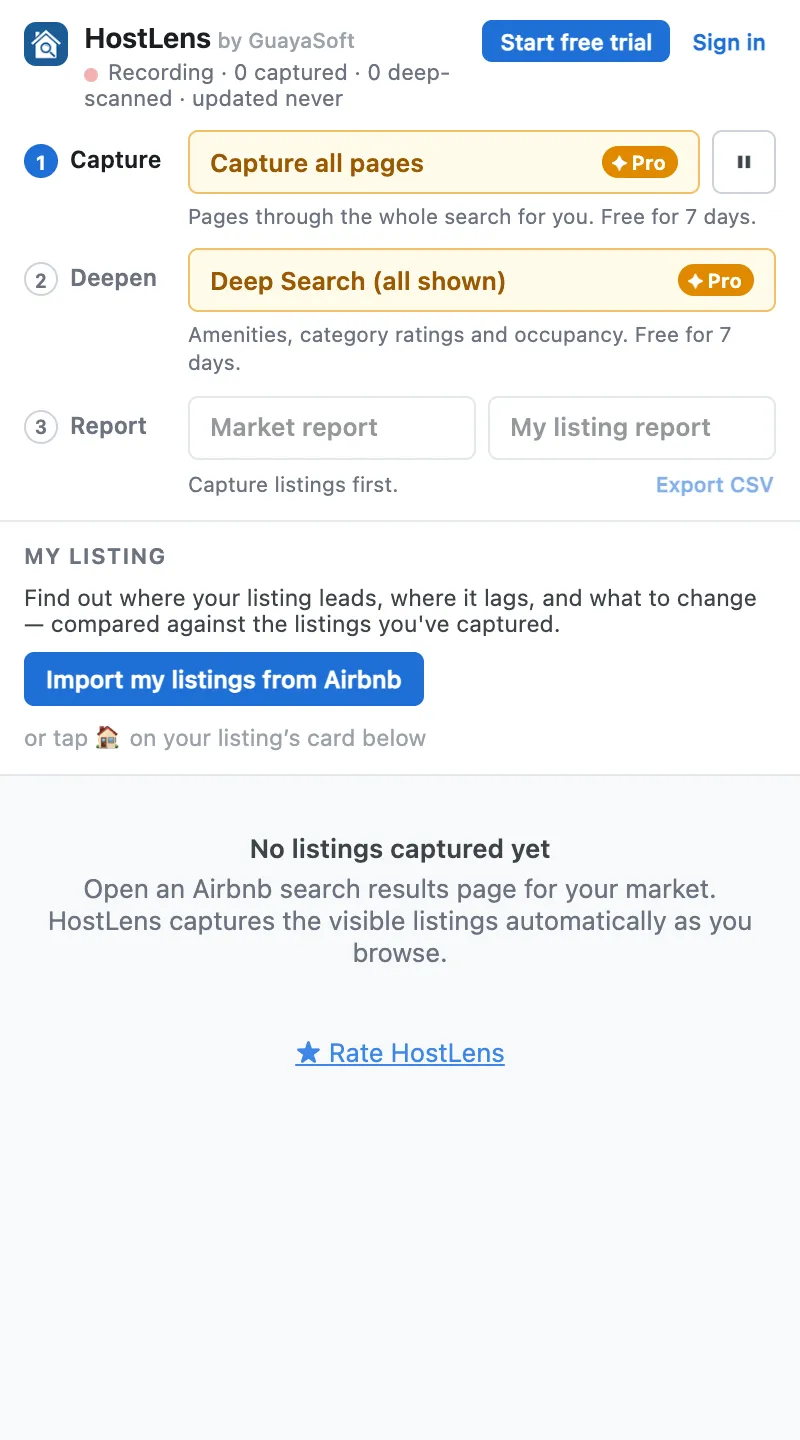
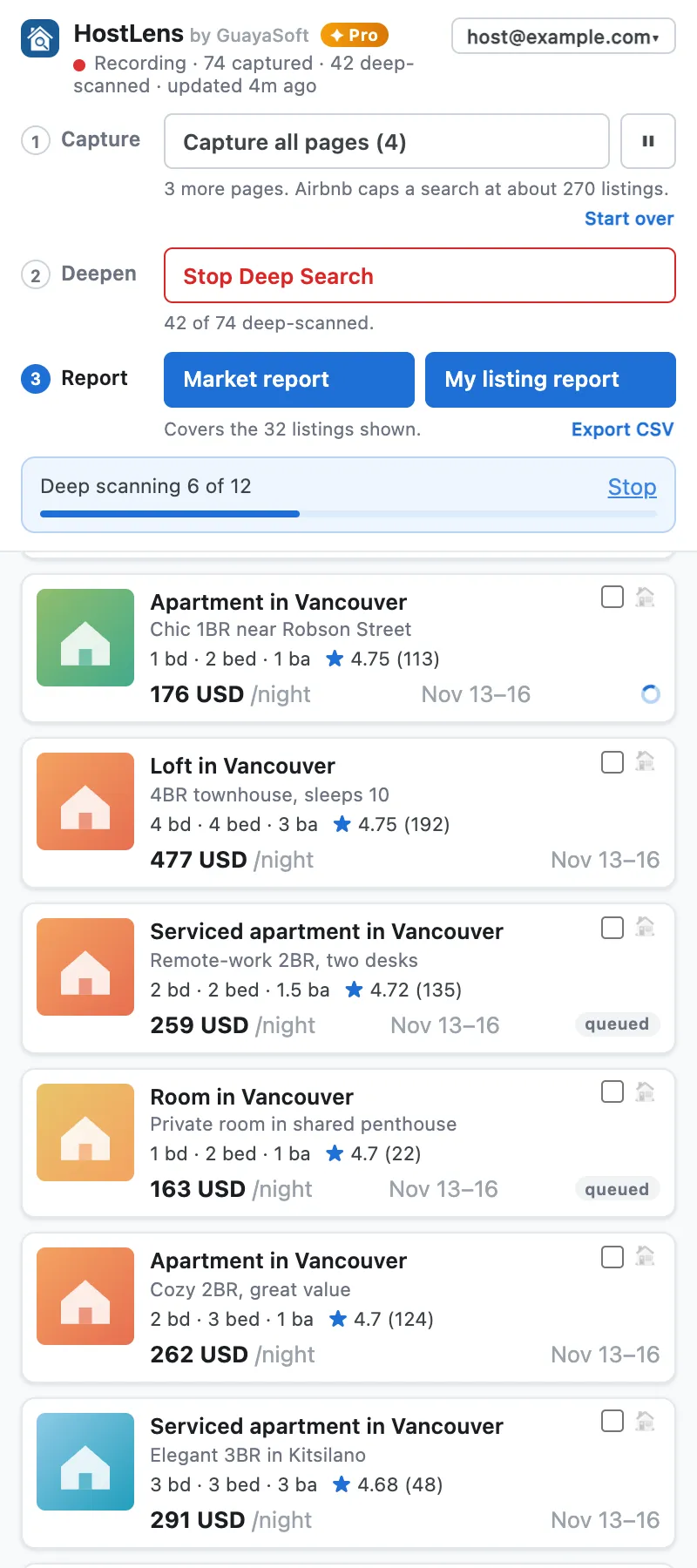
Go to airbnb.com and click the HostLens icon. A panel slides open on the right side of your browser. This is where everything happens.
The first time, it’s empty, and that’s normal. HostLens hasn’t seen any listings yet. At the top you’ll see three simple steps: Capture, Deepen and Report. The panel highlights whichever step you’re on, so you always know what to do next.
Step 3: Search Airbnb like a guest would
Now search Airbnb for your own area, just the way a guest would. Put in your city or neighborhood and, ideally, the kind of dates you want to compare.
Here’s the nice part: you don’t need to click anything in HostLens. As you scroll the results, every listing you pass shows up in the panel with its price, rating, number of reviews and bedrooms. Move the map or go to the next page of results, and more listings come in.
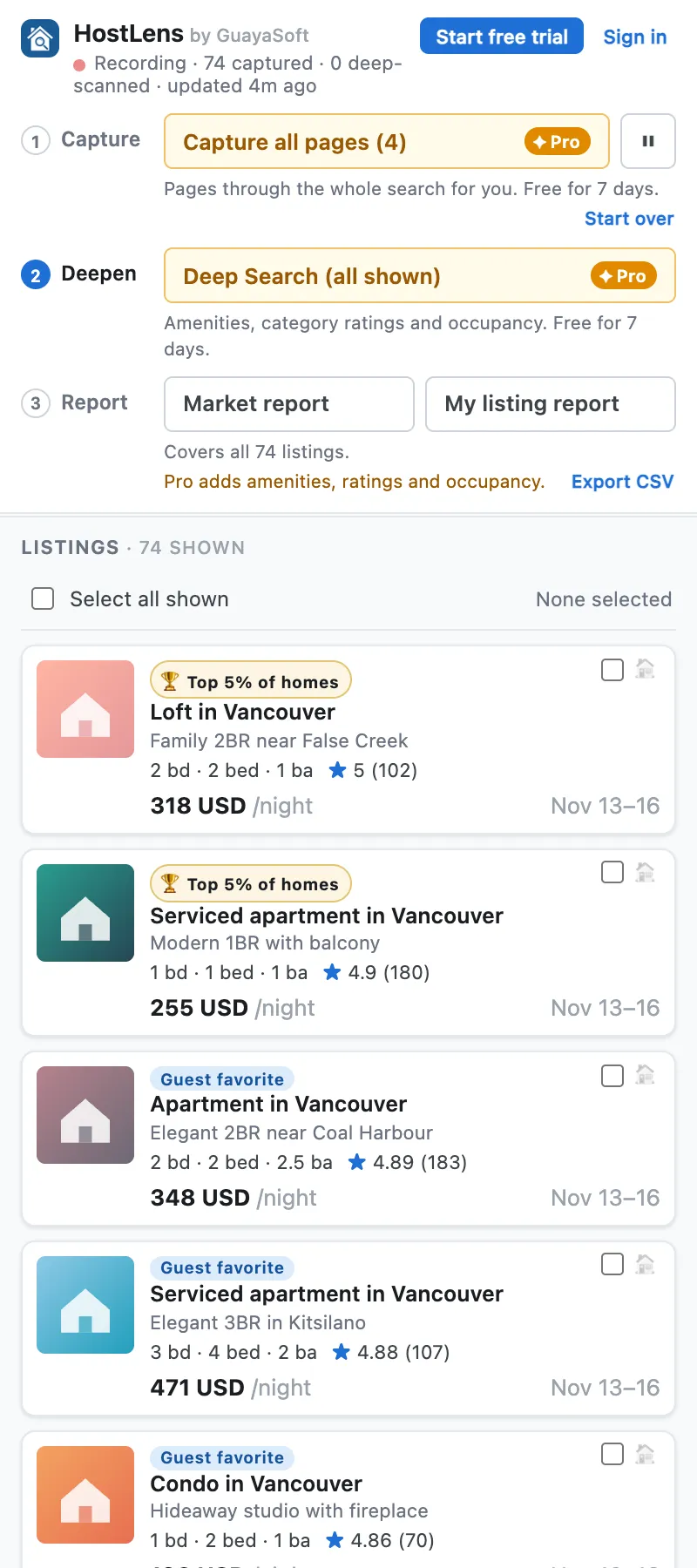
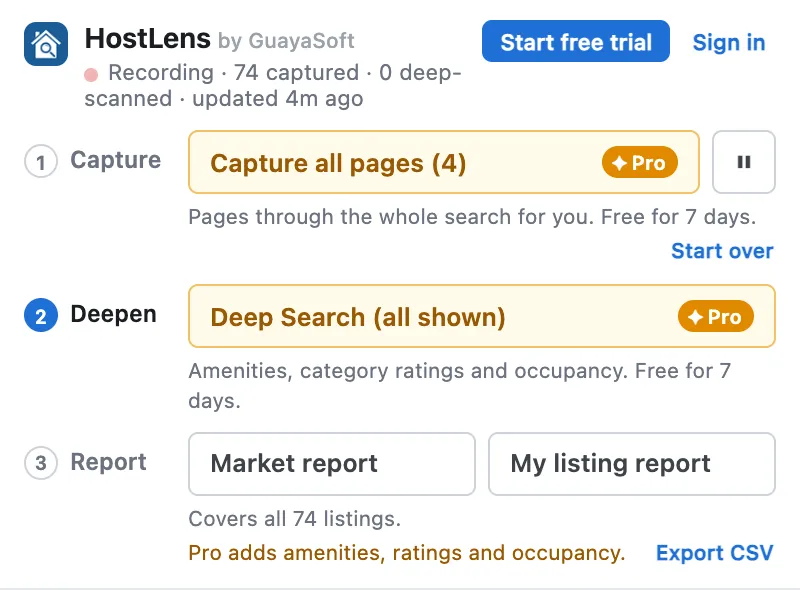
Tip: Want the whole search at once? With Pro, Capture all pages flips through every page of results for you. You can just sit back and watch.
Step 4: Tell HostLens which listing is yours
To compare your place against the rest, HostLens needs to know which one it is. You have two easy options:
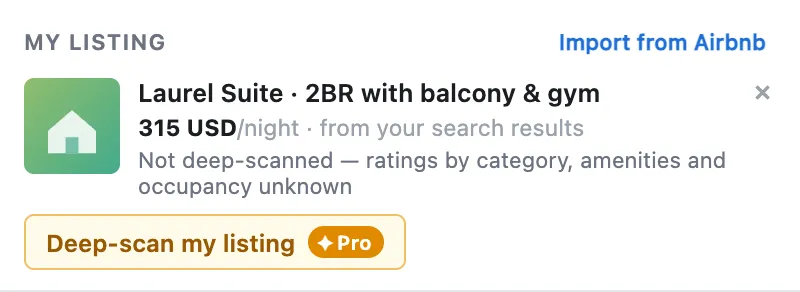
- Import my listings from Airbnb. Click the button in the My listing section and HostLens finds your listings for you, as long as you’re signed in to Airbnb as a host.
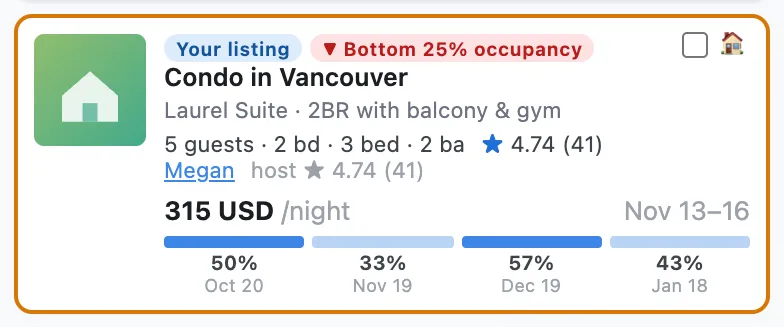
- Tap the 🏠 on a card. If you spot your own listing in the results, tap the little house icon on its card. Can’t spot it? Narrow the list with the filters, or use your browser’s find (Cmd/Ctrl+F) to look for your listing’s title.
Your own listings are kept separate from the competition, so they never get mixed into the comparison by accident. And if your listing didn’t show up in the search, you can type in your nightly rate instead.
Step 5: Narrow it down to your real competition
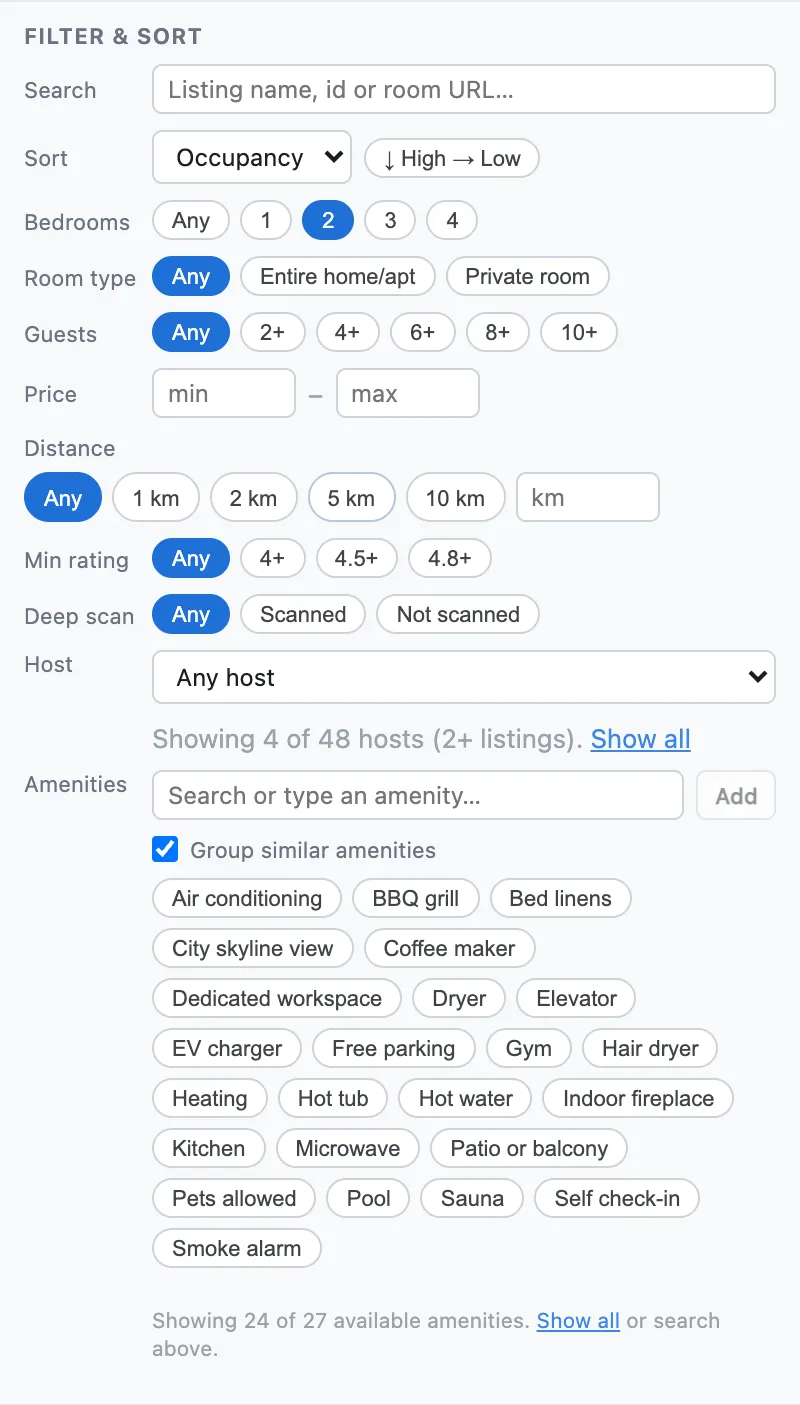
A one-bedroom studio and a four-bedroom house aren’t really competing for the same guests. Use the filters to keep only the listings that are truly like yours: number of bedrooms, guests, price range, rating, and more.
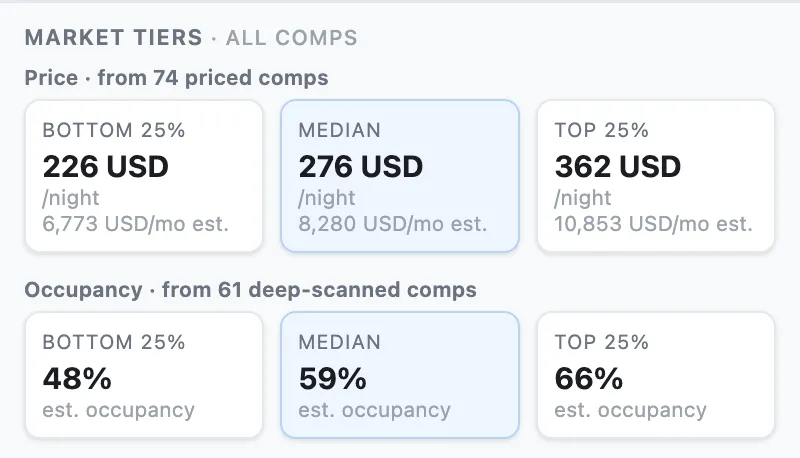
Every number in the panel updates instantly as you filter. Just below, Market tiers shows what the cheapest quarter, the middle, and the priciest quarter of those listings charge, so you can see at a glance where your price fits.
Step 6 (optional): Go deeper with Deep Search
The search page only tells you so much. Deep Search opens each listing you pick, one at a time, and reads the details you can’t see from the results page:
- the full list of amenities (hot tub, workspace, EV charger…)
- category ratings like cleanliness, location and communication
- guest capacity, room type and Superhost status
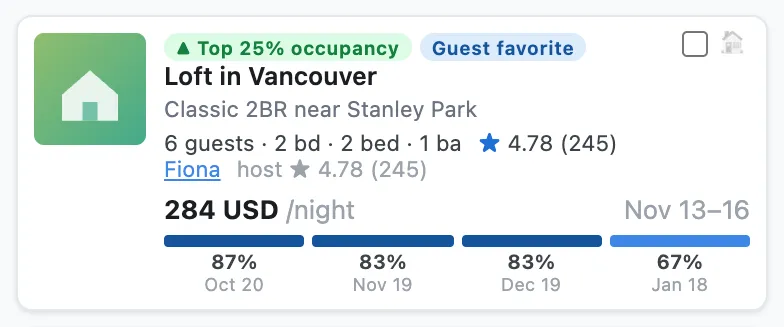
- an estimated occupancy (what that metric means) for the next four months, based on each listing’s public calendar
Tick the listings you care about (or let it run on all of them) and click Deep Search. It works through them at a calm, steady pace, so give it a few minutes. You’ll see the progress as it goes.
Don’t forget to Deep-scan my listing too, so your own place gets the same treatment.
A deep-scanned listing card showing estimated occupancy and details:
Deep Search is part of Pro. The first time you click it, you can start a 7-day free trial by signing in with Google. No credit card needed.
Step 7: Get your report
This is where it all comes together. In the Report step, you have two reports to choose from. Both download as a single web page you can open anytime, even offline, and send to a co-host, an owner or a client.
The My listing report: “How do I stack up?”
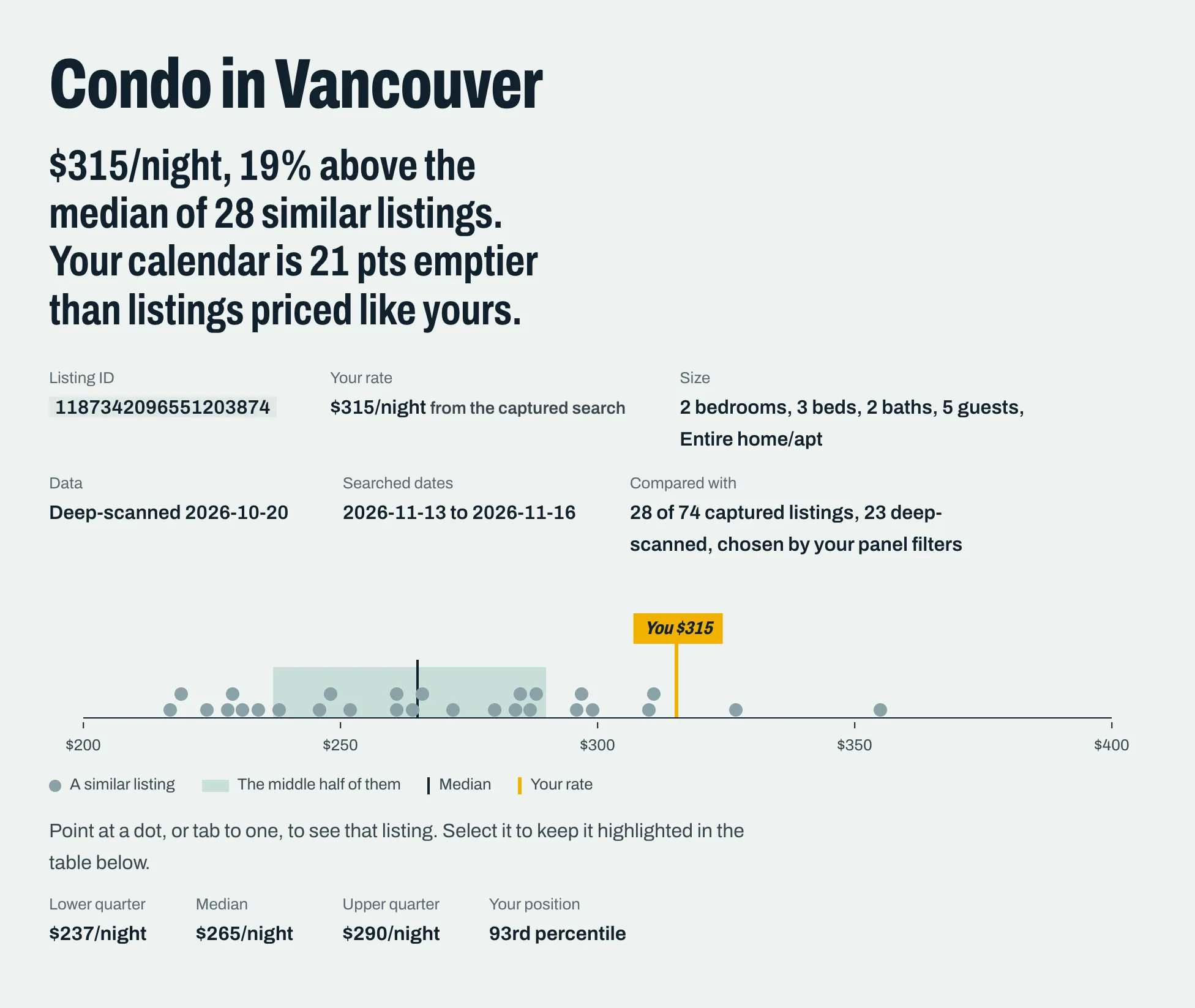
Click My listing report. It compares your place to exactly the listings you filtered to, and opens with a one-sentence summary of where you stand.
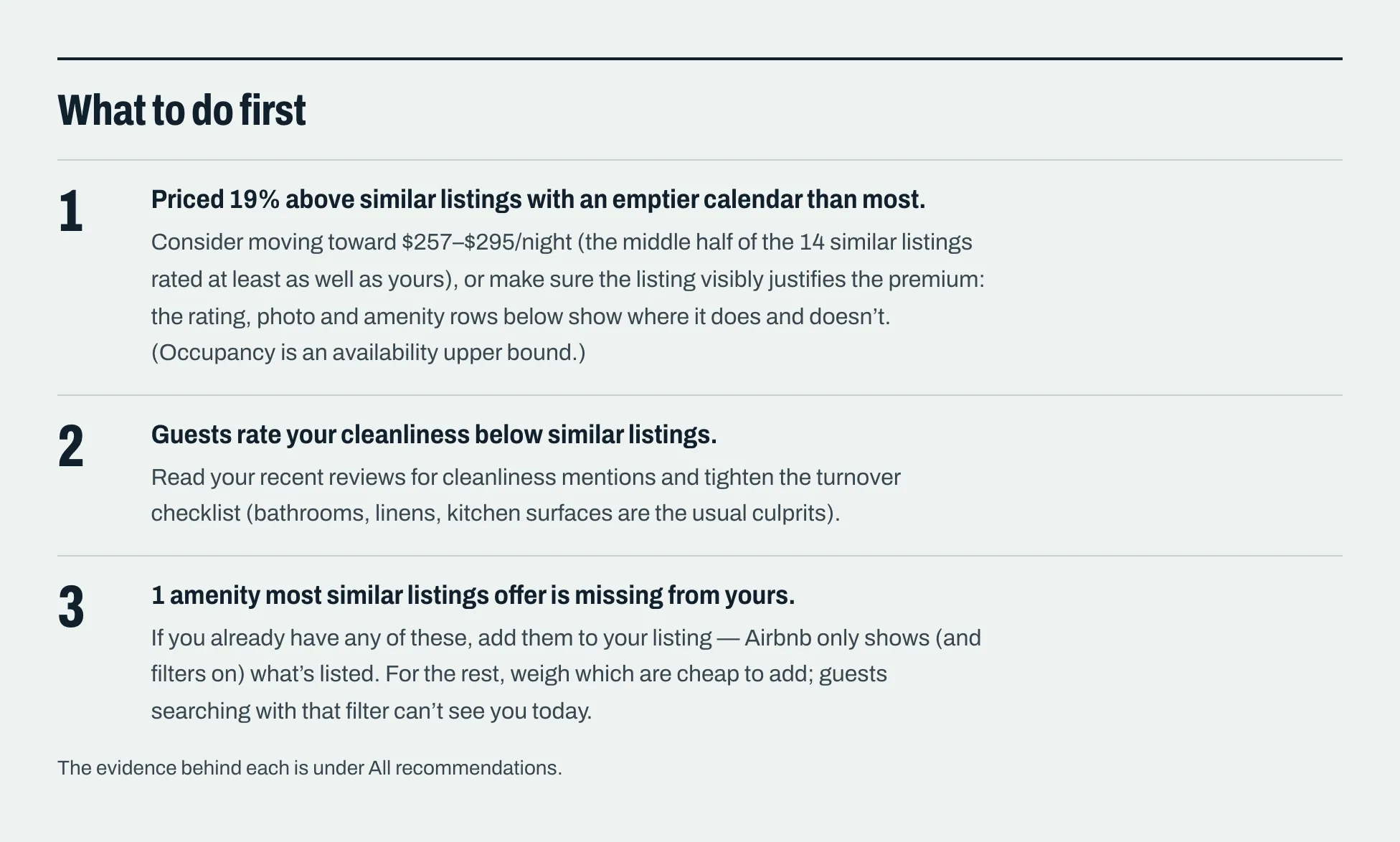
Next comes What to do first: the biggest gaps between you and similar listings, each with a practical suggestion and the number of listings behind it, so you can see exactly why it’s there.
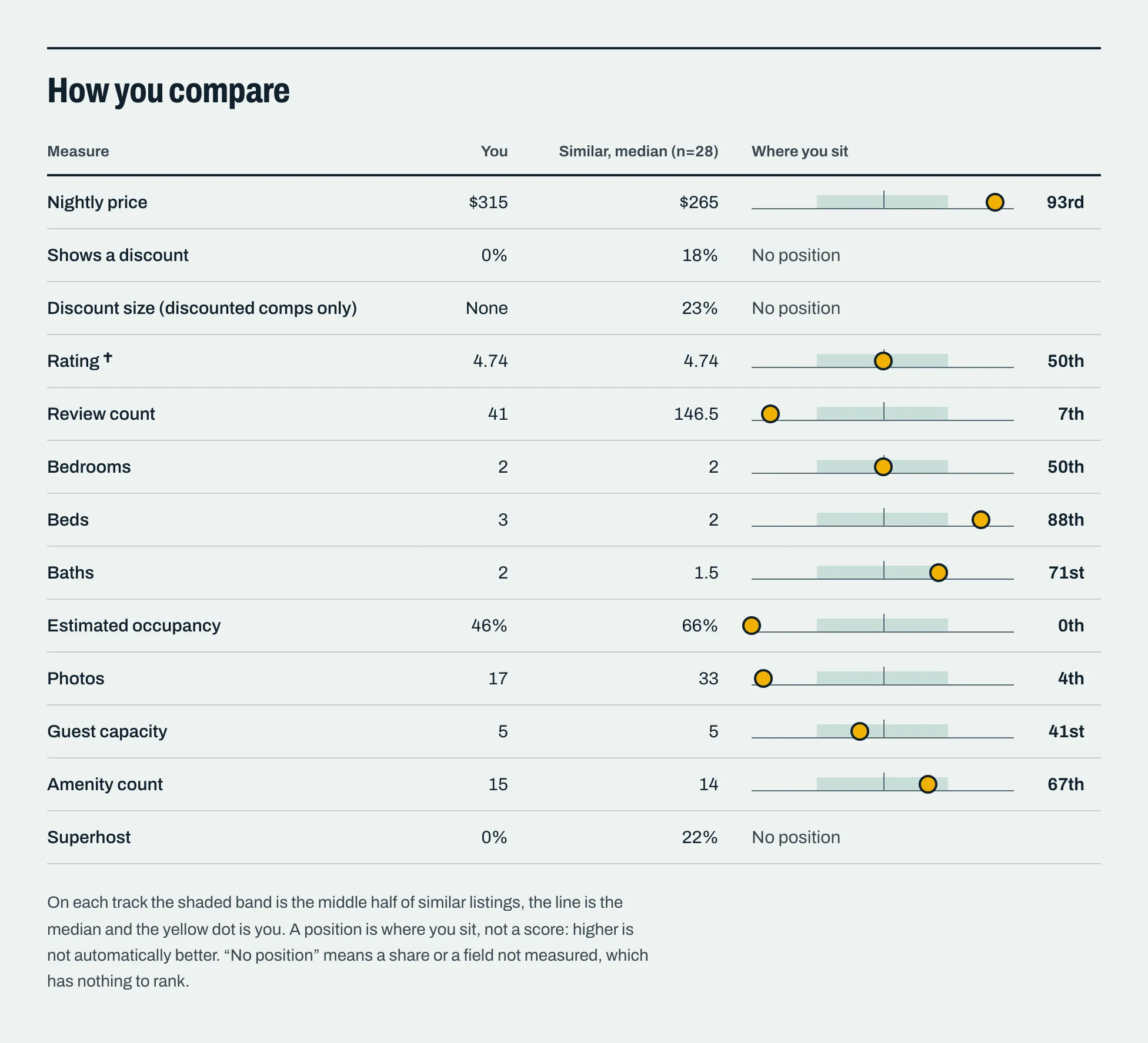
Then How you compare places you on price, reviews, photos, occupancy and more, side by side with your competition.
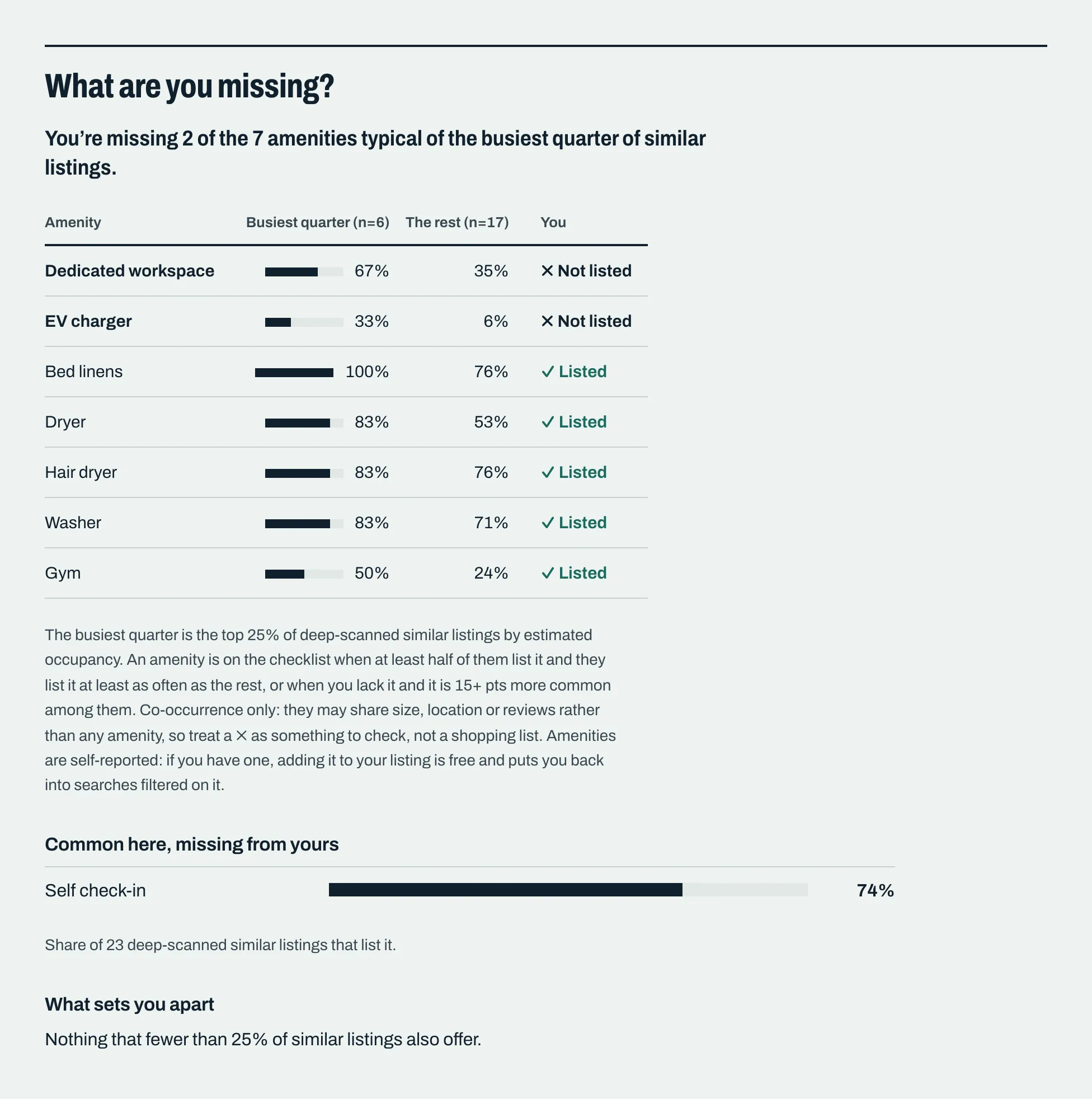
And with Deep Search data, you get a handy amenity checklist: what the busiest listings around you commonly offer, ticked off against yours.
The Market report: “Is this a good area?”
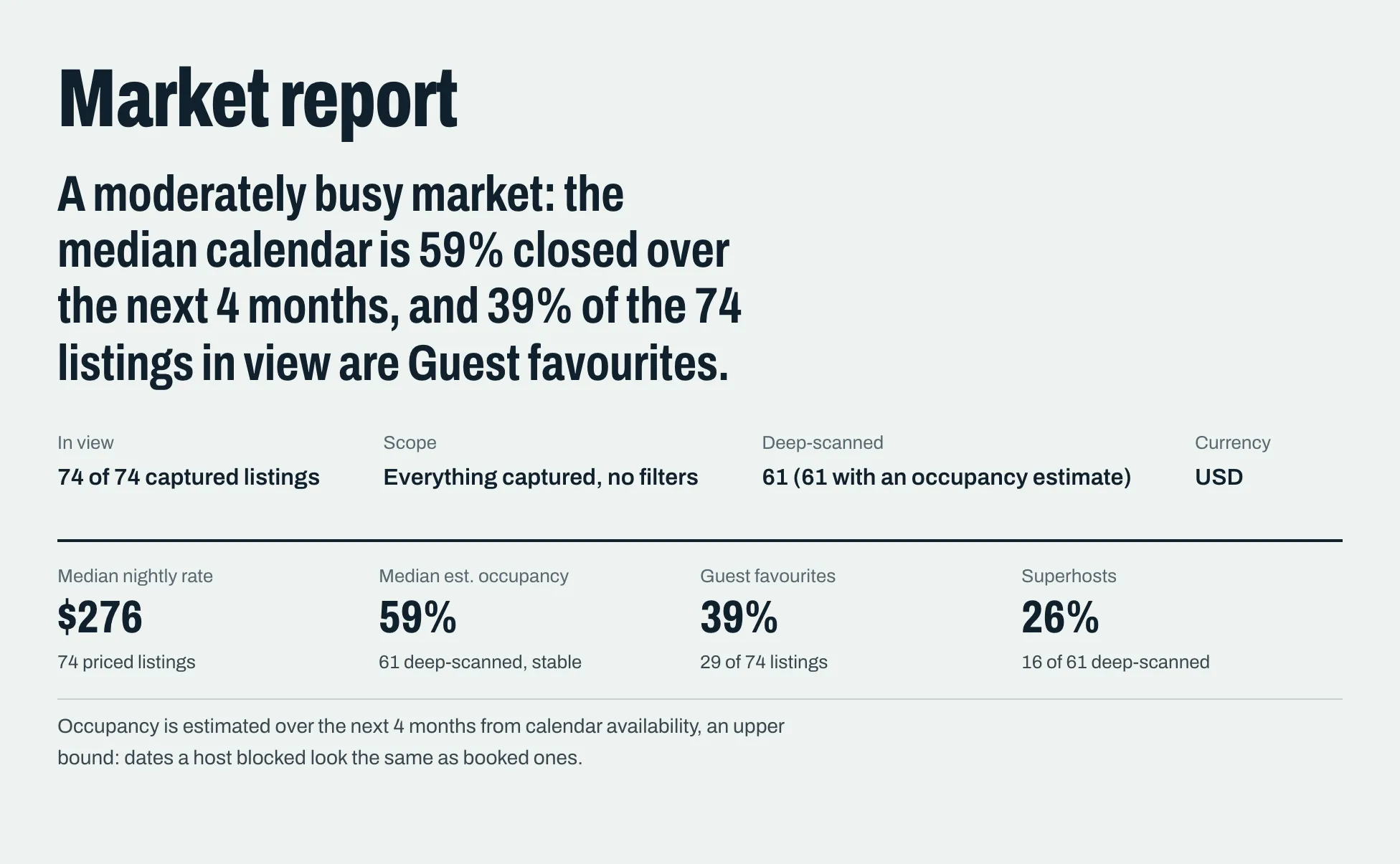
Click Market report for the big picture of your whole search. It answers the questions hosts and investors ask most: How busy is this market? What do listings charge? Which size of home is busiest? Who’s offering discounts?
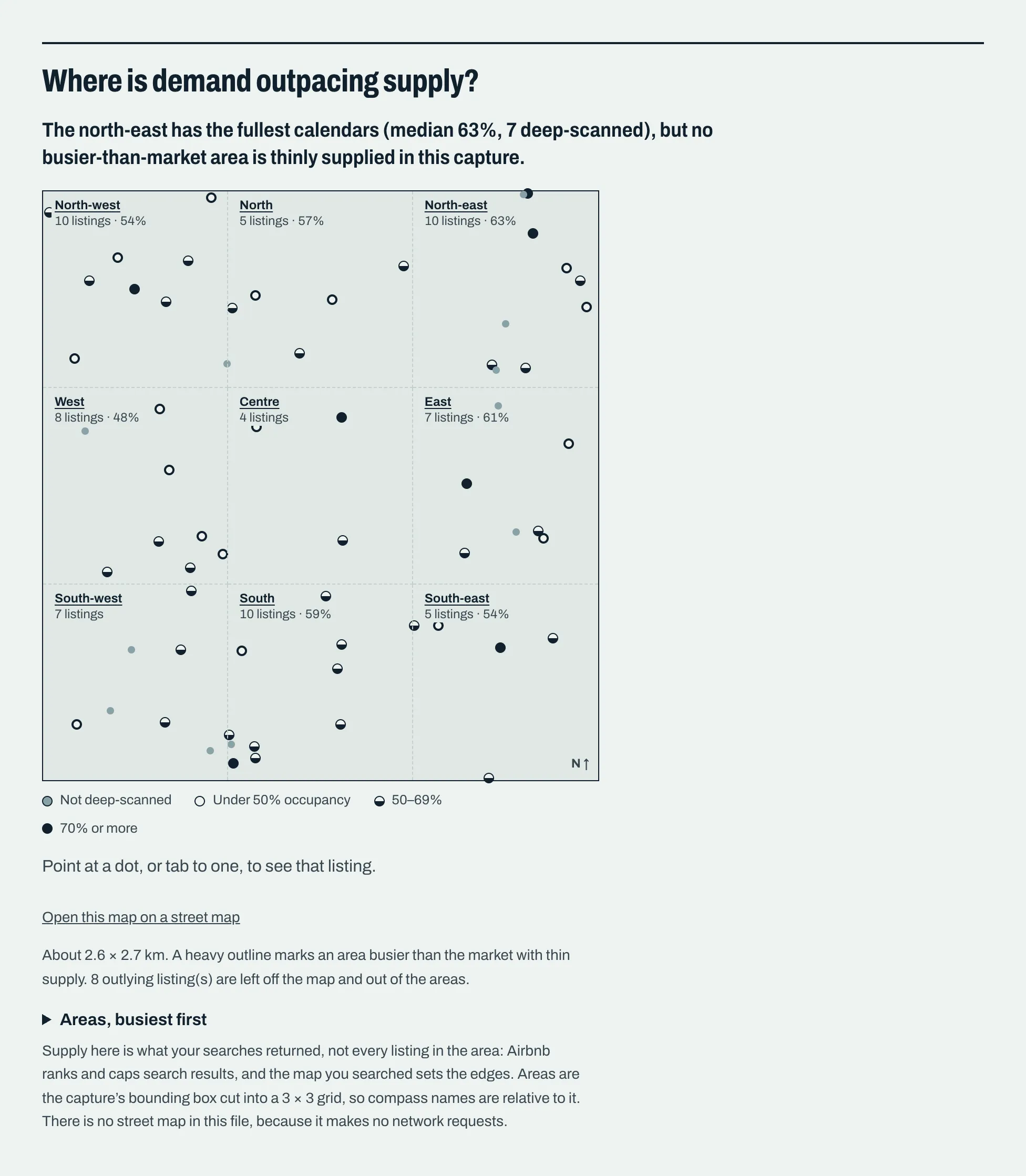
One favorite section is the map, which splits your search into nine areas and shows which parts of town look busiest, and where demand seems to outpace the number of listings.
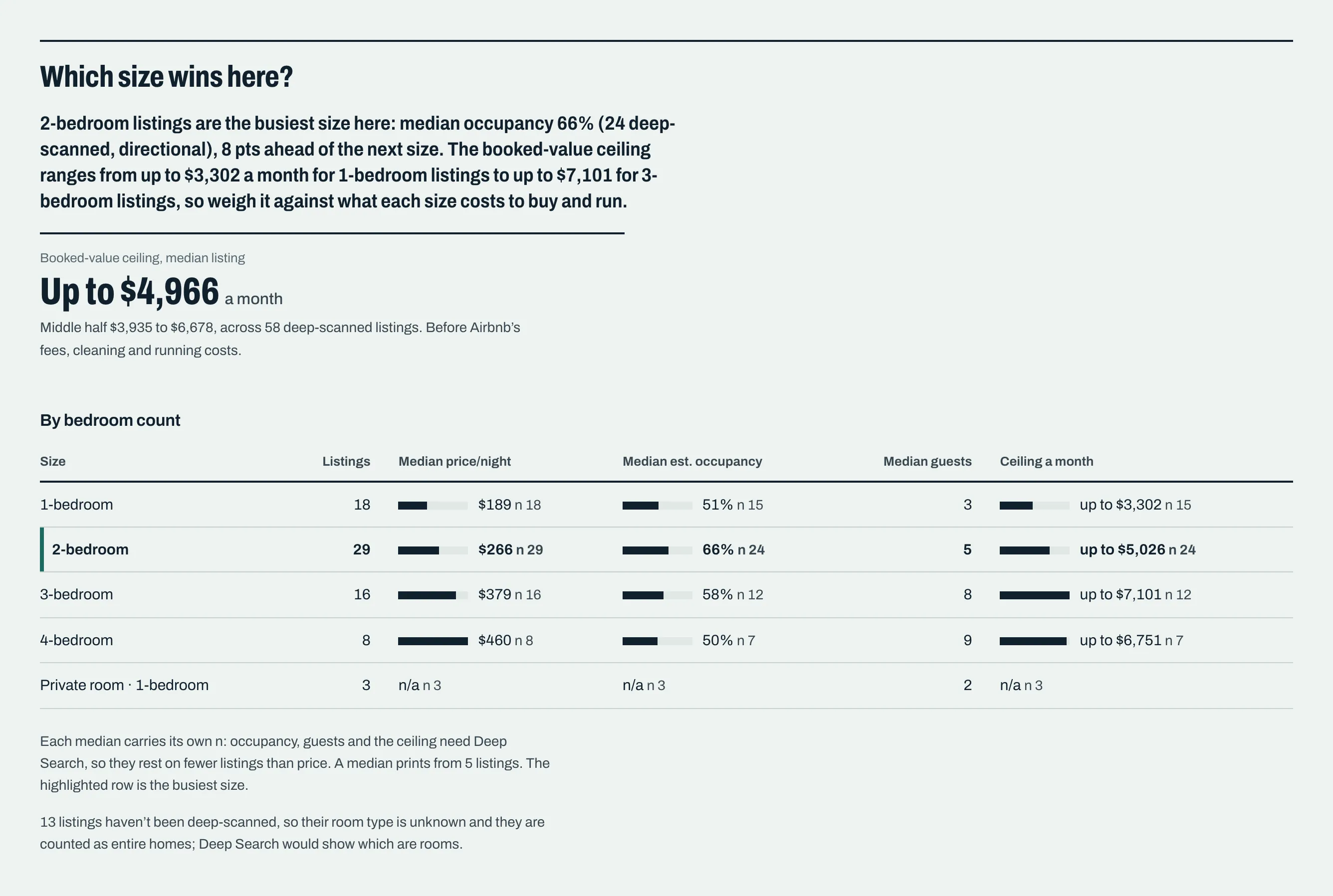
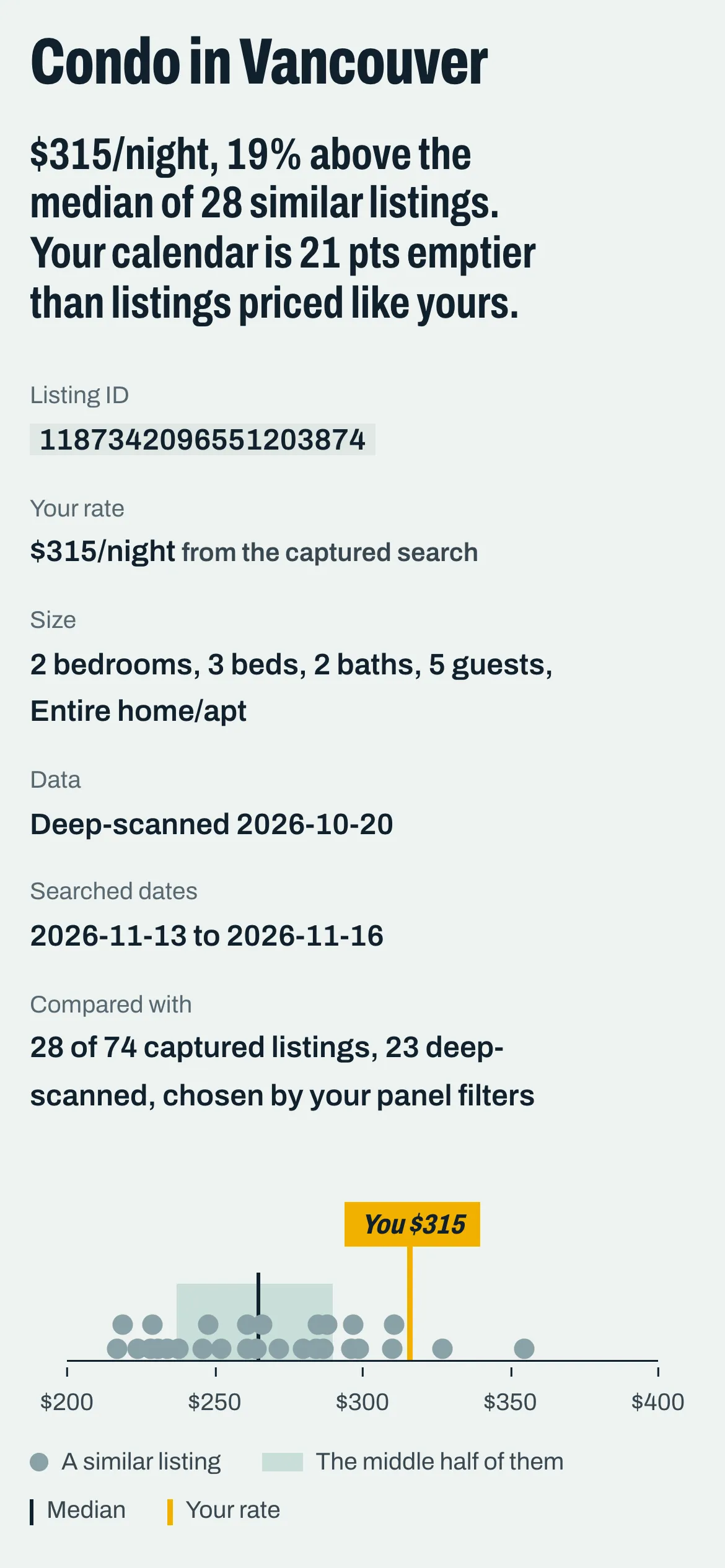
Bonus: take your data anywhere
Prefer working in a spreadsheet? The Export CSV link, right under the report buttons, saves exactly the listings on your screen, in the order you see them. Each report also comes with a Markdown copy you can paste into an AI assistant if you’d like a second opinion.

What’s free, and what’s Pro?
| Free, with no daily limits | Pro (7-day free trial) |
|---|---|
| Collecting listings as you browse | Deep Search: amenities, category ratings, occupancy |
| Filters and price tiers | Occupancy tiers and amenity analysis |
| Importing your listings | Capture all pages in one click |
| CSV export | |
| Both reports (sections that need Deep Search say so) |
A few friendly tips
- Compare like with like. Filtering to your bedroom count makes every number more meaningful. The My listing report will even remind you if your comparison mixes different sizes.
- More listings, better picture. A few dozen similar listings gives you a much clearer view than five or six.
- Start fresh for a new area. Comparing a different neighborhood? Click Start over to clear the captured listings. Your own listings stay put.
- Your data stays with you. Everything HostLens collects is stored in your own browser, not on our servers.
Ready to give it a try?
Install HostLens (free on Chrome), run one Airbnb search for your neighborhood, and download your first report. Most hosts are looking at their first comparison in under fifteen minutes. Happy hosting! 🏡
HostLens is an independent tool and is not affiliated with or endorsed by Airbnb.